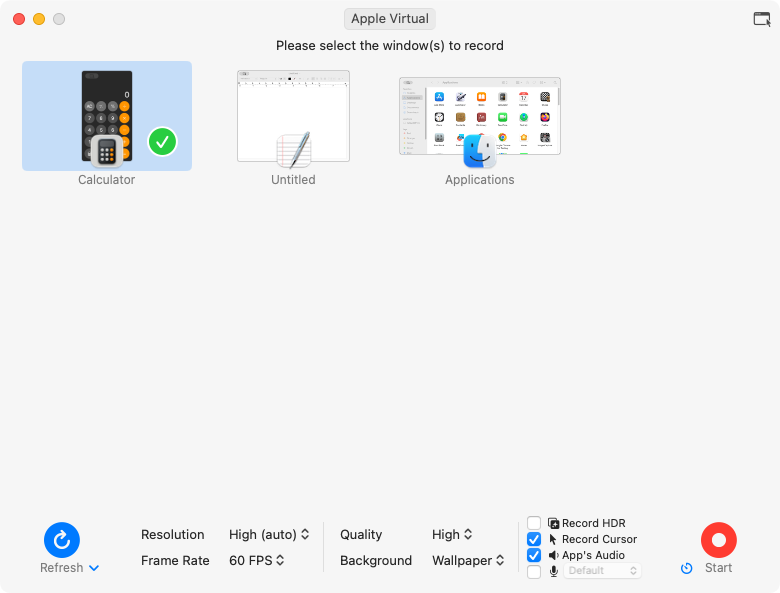
Screen, area, window or app
Record a full display, an area you drag out, one or more windows, or every window of a single app.
TinyRecorder starts from the menu bar or the Dock and keeps the recording controls in the menu bar while you record.
Record a full display, an area you drag out, one or more windows, or every window of a single app.
Capture the sound your Mac plays, with or without your microphone, or record audio only (AAC, MP3 or Opus).
Record the screen of an iPhone or iPad connected by cable. macOS treats the device as a camera, so this uses the Camera permission.
Show your camera in a floating overlay while you record, or use Presenter Overlay on macOS 14 and later.
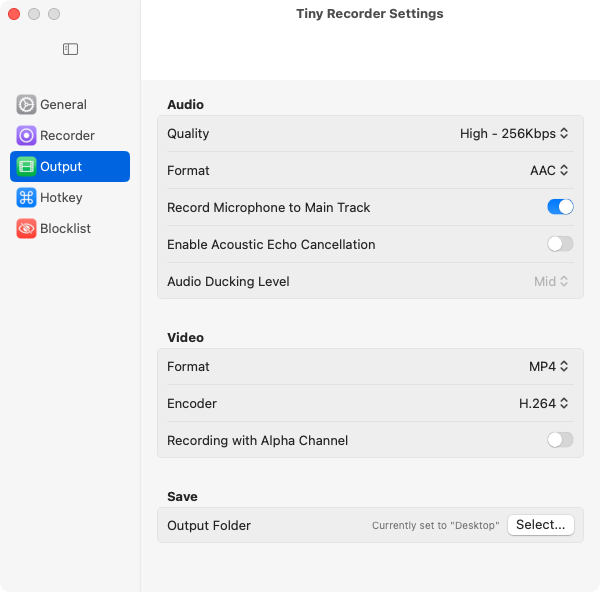
Choose the codec and container, resolution, frame rate and quality. On first launch TinyRecorder suggests an encoder for your Mac.
Record HDR on Macs with a hardware H.265 encoder, and record with an alpha channel for transparent backgrounds.
Optionally open a trimmer when you stop, to cut the start and end before you share.
Save the current frame as an image while recording.
Set shortcuts to stop, pause and resume, record the screen or the frontmost window, select an area, save a frame or toggle the screen magnifier.
Show or hide the pointer, highlight it, and zoom into details with the screen magnifier.
Exclude chosen apps, TinyRecorder itself and the files on your desktop from recordings.
Add a delay before recording starts. Built-in updates install new versions in place and keep your permissions.